> ## Documentation Index
> Fetch the complete documentation index at: https://docs.biomni.phylo.bio/llms.txt
> Use this file to discover all available pages before exploring further.
# MCP Connectors
> Connect external tools and services so the agent can use them in your tasks
MCP connectors let Biomni Lab work with external tools and services—like GitHub and Linear—directly inside a task. Once you connect an account, the agent can call that service's tools on your behalf: opening issues, reading pull requests, updating projects, and more.
Model Context Protocol (MCP) is an open standard for connecting AI agents to external tools. Any service that publishes an MCP server can be connected to Biomni Lab.
Connectors are set up per person. Connecting your GitHub account only lets the agent see what your account can already see—and only while it's working on a task you started.
## Available connectors
Your organization chooses which connectors are available. Biomni Lab includes these built-in connectors:
| Connector | What the agent can do | Sign-in |
| ---------- | ------------------------------------------------ | ------- |
| **GitHub** | Repositories, issues, pull requests, and actions | OAuth |
| **Linear** | Issues, projects, comments, and cycles | OAuth |
Organization admins can also add **custom connectors** for any other MCP server—see [For organization admins](#for-organization-admins).
If you don't see any connectors under **Settings → Connectors**, an organization admin hasn't enabled any yet.
## Connecting a connector
1. Open **Settings → Connectors**.
2. Find the connector under **MCP Connectors** and click **Connect**.
3. Complete sign-in using one of the methods below.
A popup opens to the service's sign-in page. Approve access, and the popup closes automatically. The row updates to show a **Connected** badge and the account you linked.
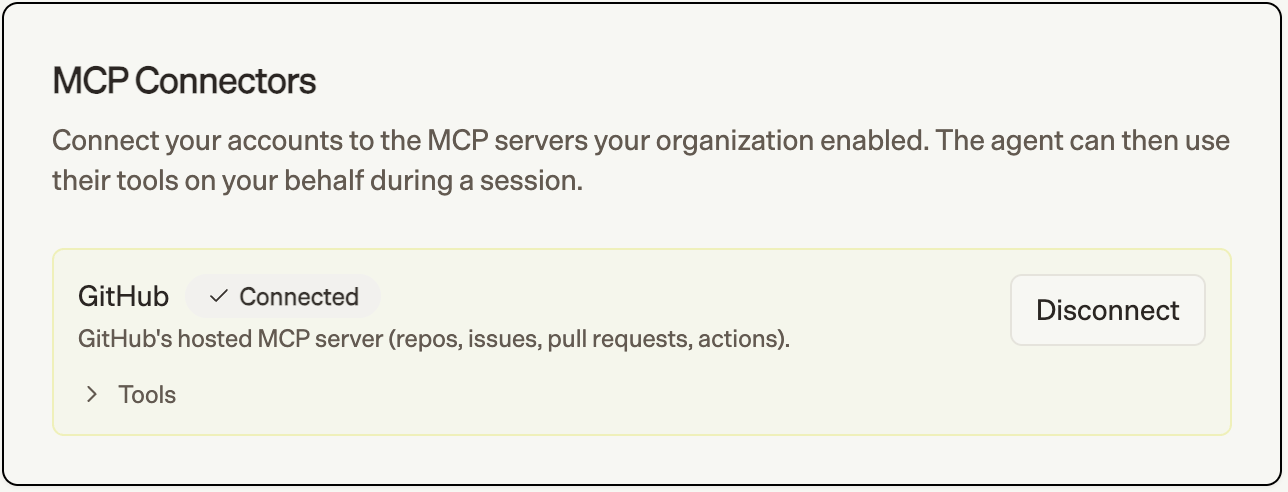 If nothing happens when you click **Connect**, your browser may have blocked the popup. Allow popups for this site, then try connecting again.
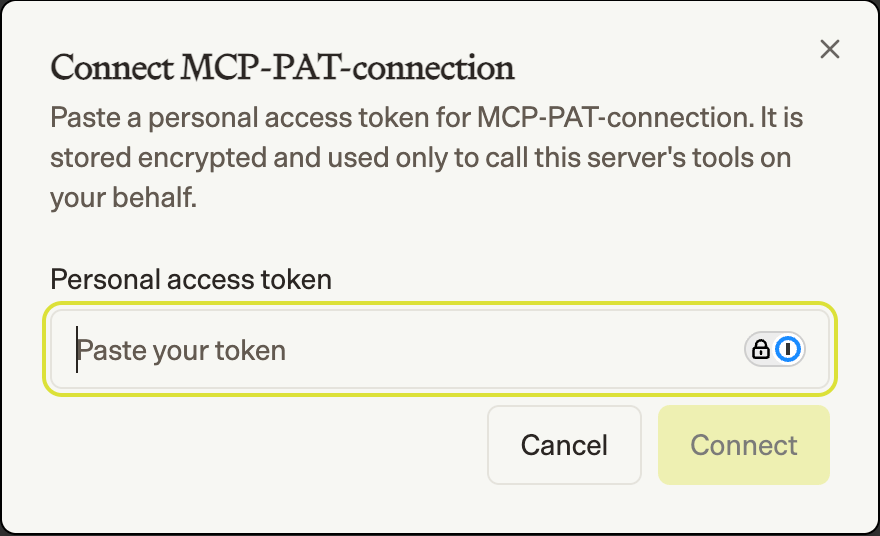
Some custom connectors ask for a token instead of a popup. Paste a personal access token for the service and click **Connect**. Your token is stored encrypted and used only to call that server's tools on your behalf.
If nothing happens when you click **Connect**, your browser may have blocked the popup. Allow popups for this site, then try connecting again.
Some custom connectors ask for a token instead of a popup. Paste a personal access token for the service and click **Connect**. Your token is stored encrypted and used only to call that server's tools on your behalf.
 ## Using connector tools in a task
Once connected, just describe what you want—the agent picks the right tool automatically. You don't need to `@` mention anything.
```
Open a GitHub issue in acme/genome-pipeline titled "Add a QC step"
and summarize the three most recent open issues.
```
The agent only uses connectors you've connected, and only the tools you've left enabled.
## Choosing which tools the agent can use
Each connected server exposes a set of tools. Expand **Tools** on a connected row to see them, grouped into **Read-only** and **Write**. Every tool has a switch—toggle one off to stop the agent from using it.
## Using connector tools in a task
Once connected, just describe what you want—the agent picks the right tool automatically. You don't need to `@` mention anything.
```
Open a GitHub issue in acme/genome-pipeline titled "Add a QC step"
and summarize the three most recent open issues.
```
The agent only uses connectors you've connected, and only the tools you've left enabled.
## Choosing which tools the agent can use
Each connected server exposes a set of tools. Expand **Tools** on a connected row to see them, grouped into **Read-only** and **Write**. Every tool has a switch—toggle one off to stop the agent from using it.
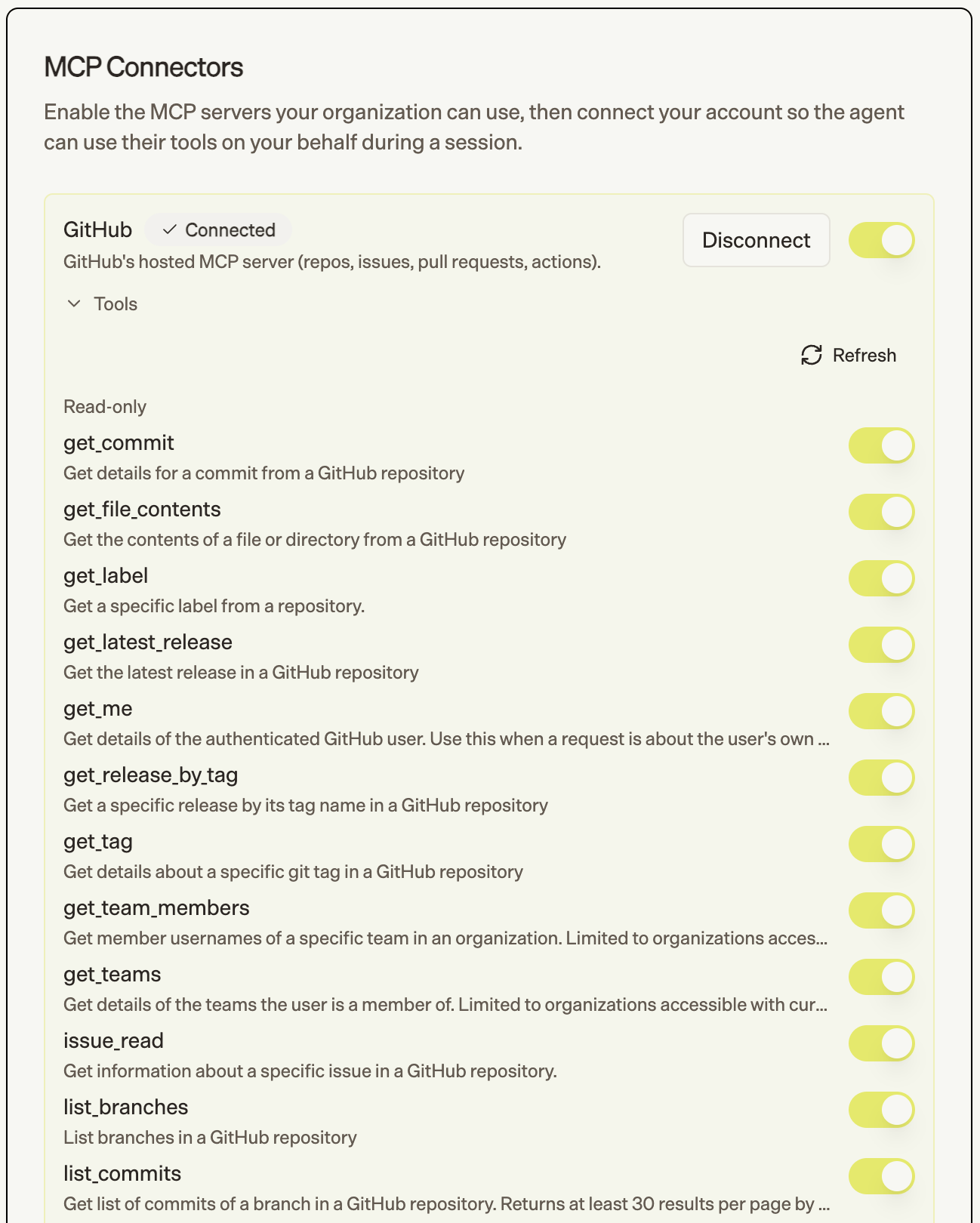 Want the agent to look but not touch? Turn off the **Write** tools and leave **Read-only** on.
Click **Refresh** to re-fetch the tool list if the server has changed.
## Disconnecting
Click **Disconnect** on a connected row to remove your account and stop the agent from using that server. You can reconnect anytime.
## For organization admins
Admins and owners control which connectors the whole organization can use.
Where you manage connectors depends on your plan:
* **Biomni Lab (self-serve):** **Settings → Connectors**—the same panel your members use, with extra admin controls.
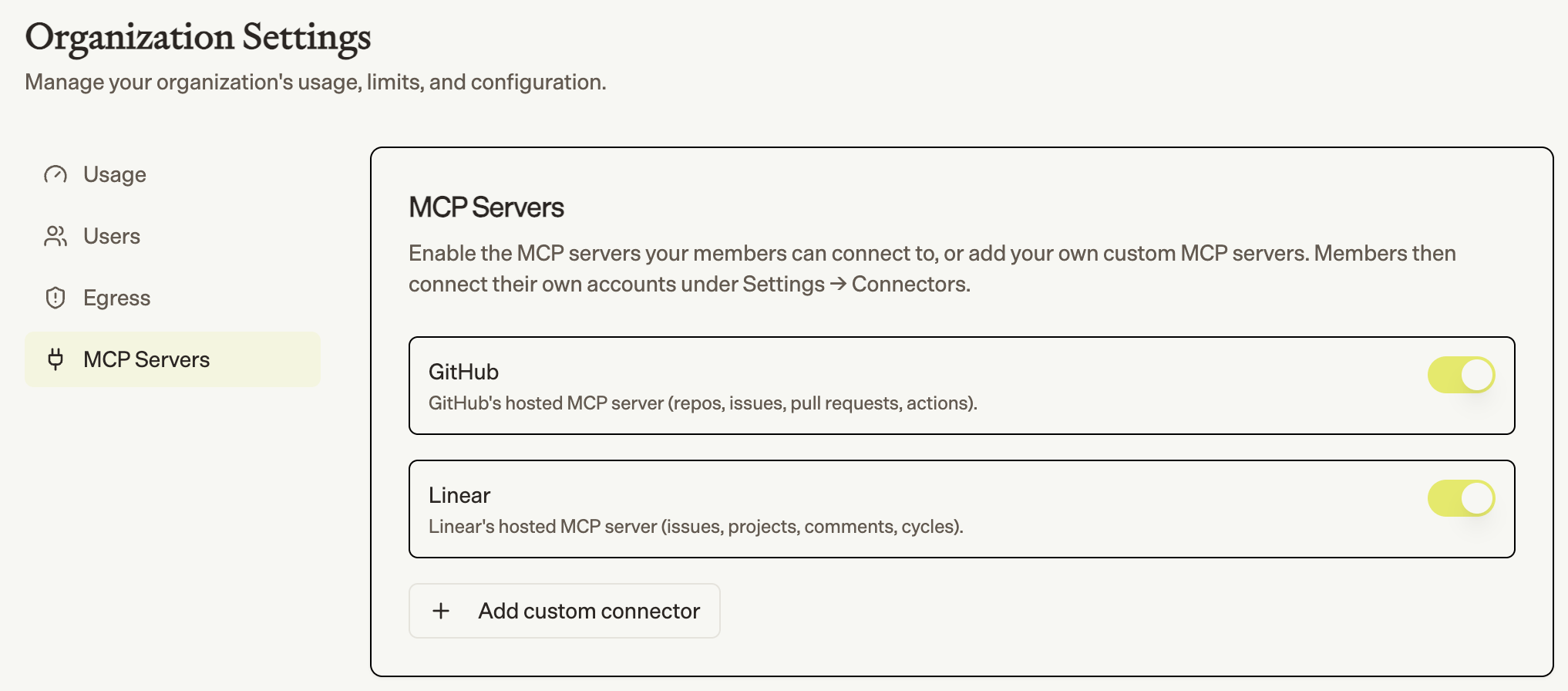
* **Enterprise deployments:** **Organization Settings → MCP Servers**.
### Enabling a connector
Toggle a connector's switch on to make it available to your members. They'll then see it under **Settings → Connectors** and can connect their own accounts. Toggle it off to hide it again.
Want the agent to look but not touch? Turn off the **Write** tools and leave **Read-only** on.
Click **Refresh** to re-fetch the tool list if the server has changed.
## Disconnecting
Click **Disconnect** on a connected row to remove your account and stop the agent from using that server. You can reconnect anytime.
## For organization admins
Admins and owners control which connectors the whole organization can use.
Where you manage connectors depends on your plan:
* **Biomni Lab (self-serve):** **Settings → Connectors**—the same panel your members use, with extra admin controls.
* **Enterprise deployments:** **Organization Settings → MCP Servers**.
### Enabling a connector
Toggle a connector's switch on to make it available to your members. They'll then see it under **Settings → Connectors** and can connect their own accounts. Toggle it off to hide it again.
 ### Adding a custom connector
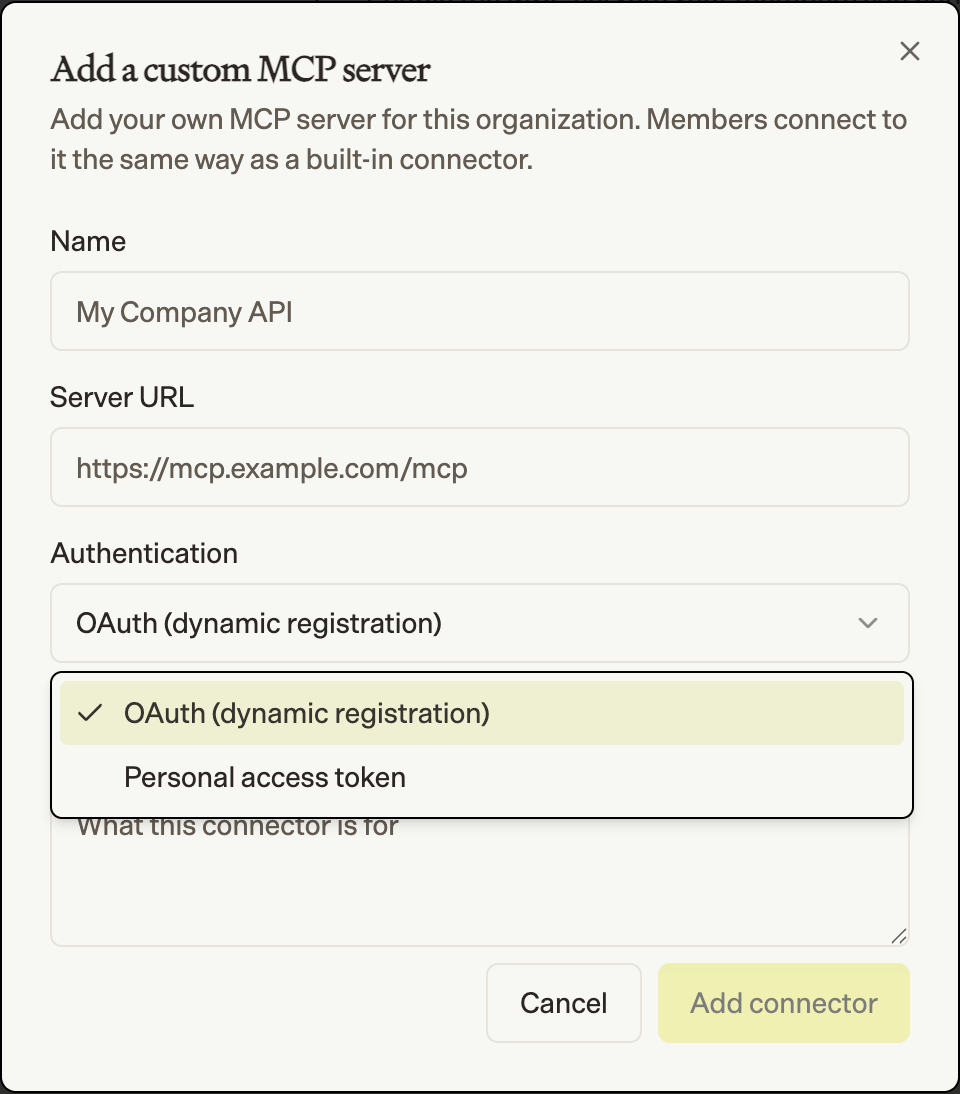
Connect any MCP server your team runs or subscribes to:
1. Click **Add custom connector**.
2. Fill in the details:
* **Name** — how the connector appears to members (e.g. *My Company API*)
* **Server URL** — the server's MCP endpoint (e.g. `https://mcp.example.com/mcp`)
* **Authentication** — how members sign in:
* **OAuth (dynamic registration)** — members sign in through the server's OAuth flow
* **Personal access token** — each member pastes their own token
* **Description** *(optional)*
3. Click **Add connector**.
### Adding a custom connector
Connect any MCP server your team runs or subscribes to:
1. Click **Add custom connector**.
2. Fill in the details:
* **Name** — how the connector appears to members (e.g. *My Company API*)
* **Server URL** — the server's MCP endpoint (e.g. `https://mcp.example.com/mcp`)
* **Authentication** — how members sign in:
* **OAuth (dynamic registration)** — members sign in through the server's OAuth flow
* **Personal access token** — each member pastes their own token
* **Description** *(optional)*
3. Click **Add connector**.
 The connector appears in the list with a **Custom** badge, ready for members to connect.
### Removing a custom connector
Click the delete icon on a custom connector and confirm. Built-in connectors can't be deleted—only disabled.
Deleting a custom connector removes it for the whole organization and disconnects every member's connection to it. This can't be undone.
## Security & privacy
* **Per-person connections.** Connecting is per user; the agent only ever acts with your own access.
* **Encrypted at rest.** OAuth tokens and personal access tokens are stored encrypted.
* **Used only during your tasks.** The agent calls connector tools on your behalf while working on a task you started.
* **You stay in control.** Disable individual tools or disconnect at any time. Admins control which connectors exist for the organization.
The connector appears in the list with a **Custom** badge, ready for members to connect.
### Removing a custom connector
Click the delete icon on a custom connector and confirm. Built-in connectors can't be deleted—only disabled.
Deleting a custom connector removes it for the whole organization and disconnects every member's connection to it. This can't be undone.
## Security & privacy
* **Per-person connections.** Connecting is per user; the agent only ever acts with your own access.
* **Encrypted at rest.** OAuth tokens and personal access tokens are stored encrypted.
* **Used only during your tasks.** The agent calls connector tools on your behalf while working on a task you started.
* **You stay in control.** Disable individual tools or disconnect at any time. Admins control which connectors exist for the organization.